Configurator
configurator screen
Configurator is used to modify the settings of your SESAHUB solution
It is used to manage the folowing elements :
- Company informations
- Services and Services hierarchy
- Dashboard models
- Dashboard services
- Indicator
Modification of company informations
Goals :
Modify the specific elements to the company's organisation (Entity, adress, Web Site, workday, Accounting financial date, Managers ... )
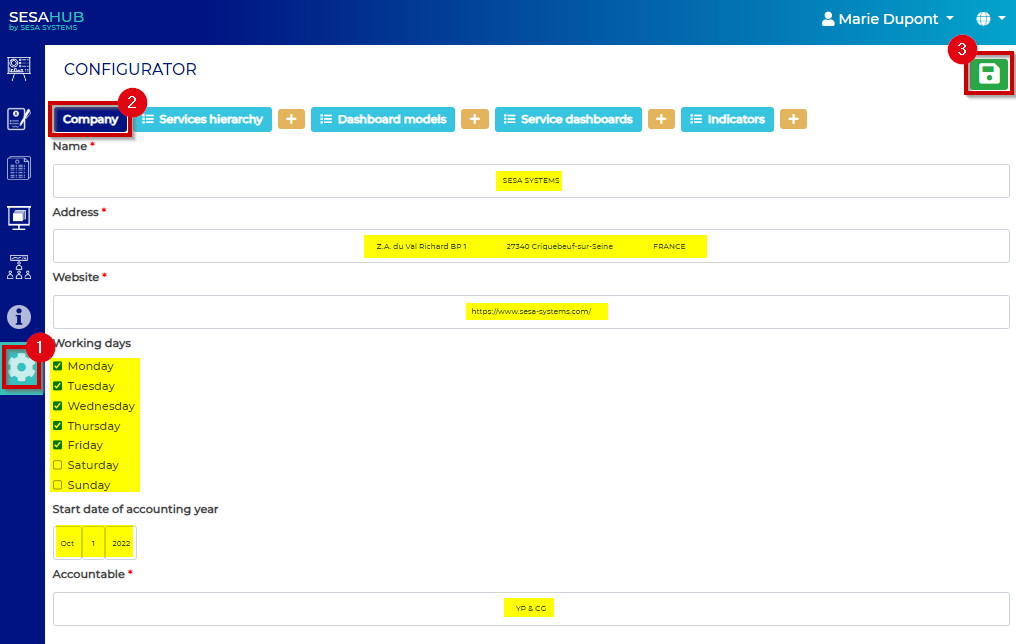
- Access to configurator menu (1)
- Access to company informations from configurator menu (2)
- Modify the field as required
- Save the changes (3)
Create and modify the services hierarchy
Goals :
Visualisation of « Children's services » indicators
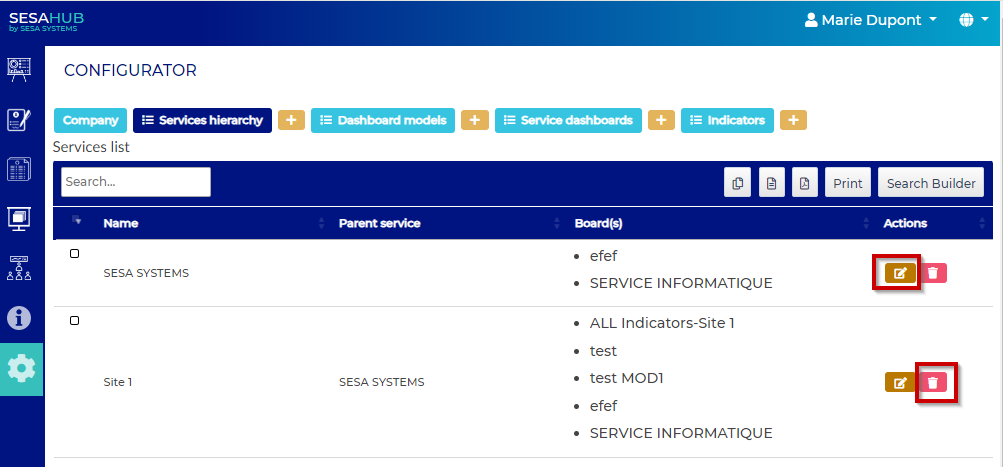
In configurator menu:
- The « + » button is used to create a new service
- The « Services hierarchy » is used to modify the hierarchy as required
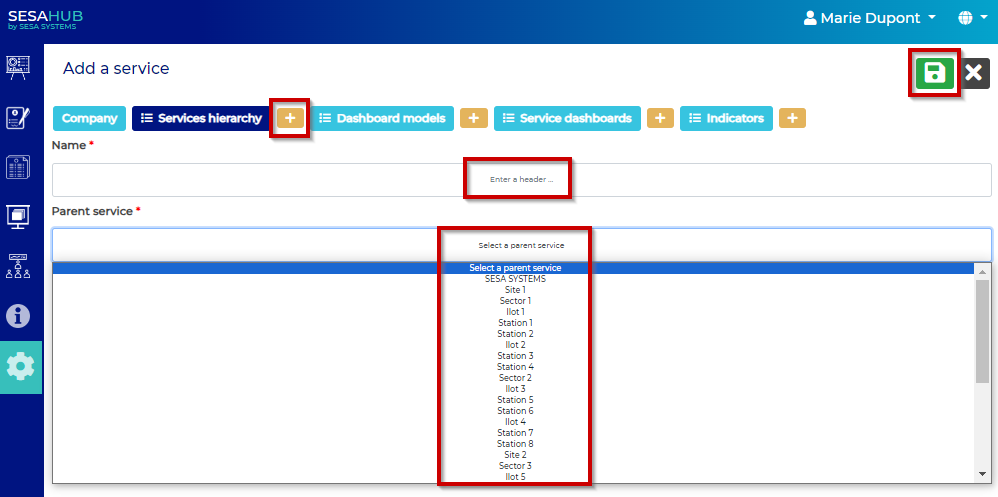
By clicking on the « + » button the services creation popup appears :
- : Click on the « + » button
- : Name the service
- : Choose the parent service
- : Save the new service
The service is created, the modification of the services hierarchy is now allowed :
The steps to modify a service are the same as for the creation.
WARNING : It is not recommended to change a parent service, or to keep it without any selection of parent services. the risk is to lost all the service's datas.
Dashboard models
Goals :
Allows the creation, modification, deletion of a dashboard model
A dashboard models alloxs to link an indicator to a theme and visualize it from de home page of the concerned service.
The « + » button allows the creation of a new dashboard model,
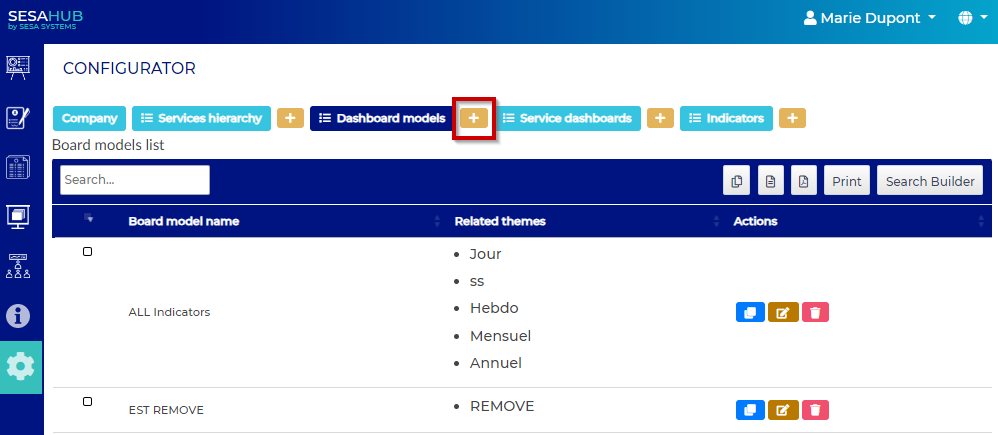
Writte the dashboard model name Save the changes :
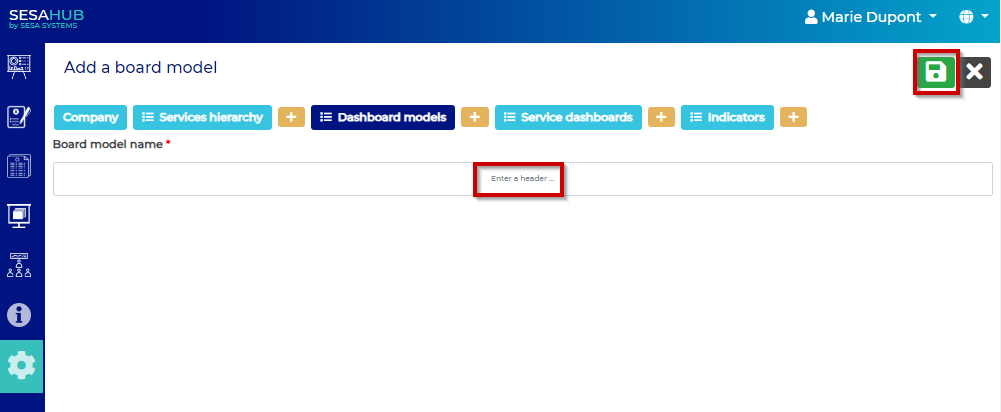
The dashboard model is now available but does not contain any theme. It is necessary to create the associated theme(s)
- Modify to create a theme
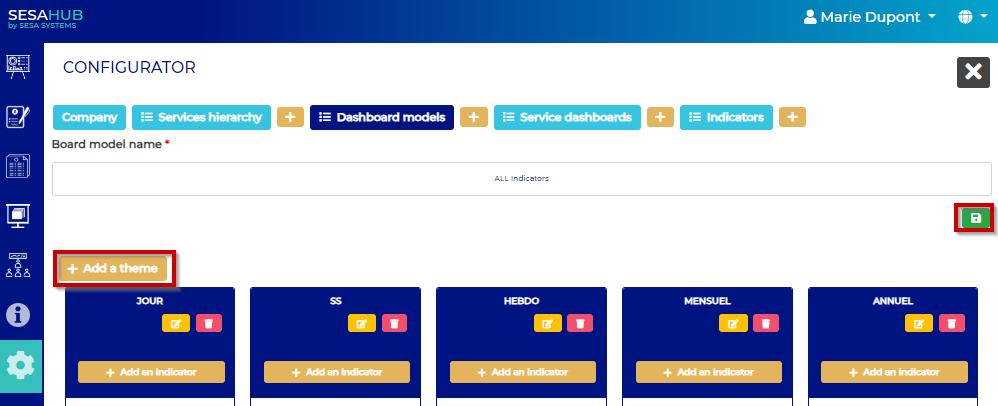
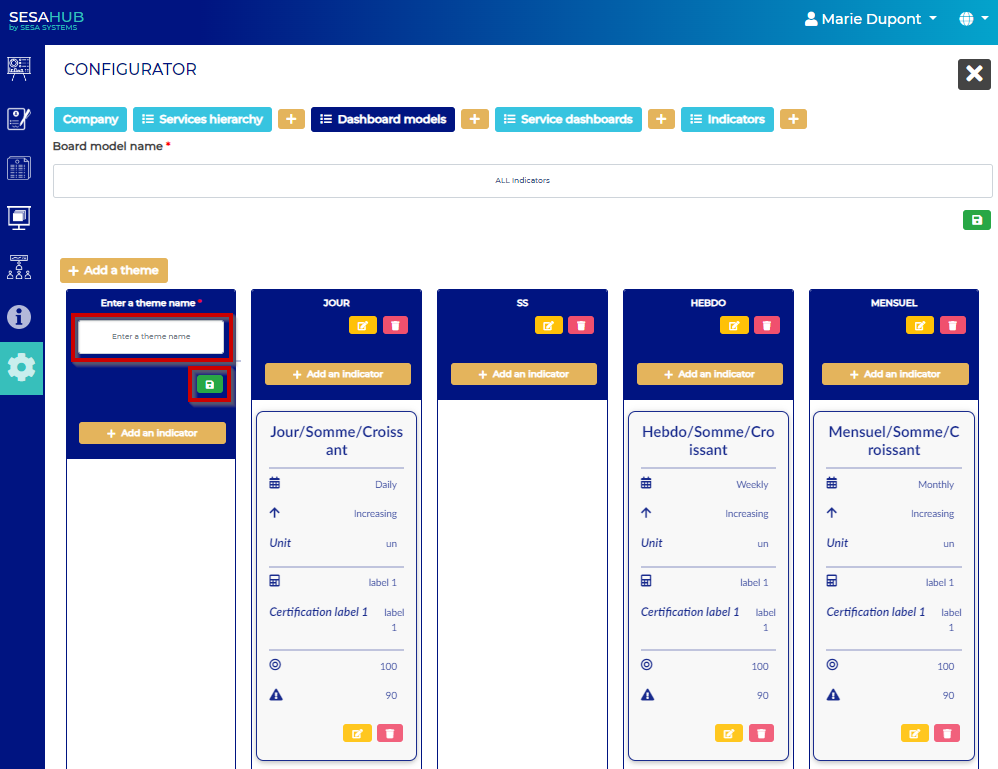
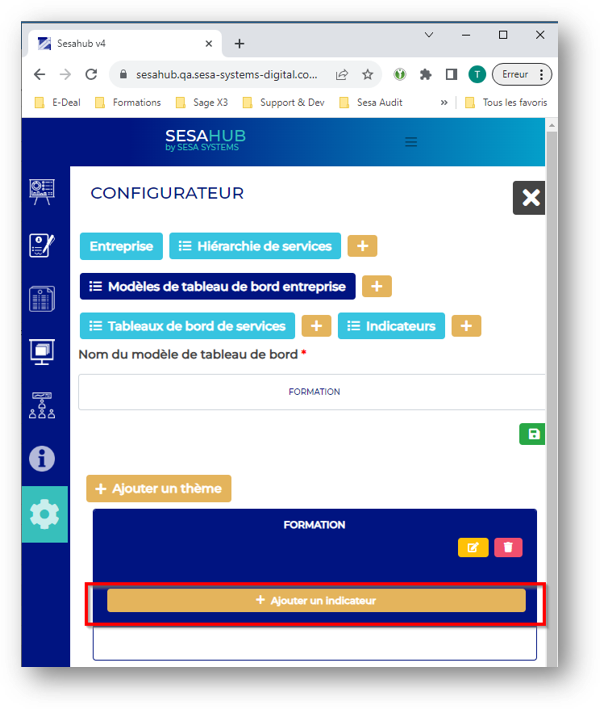
Select the indicatore in the drop-down list
WARNING The indicator should have been created
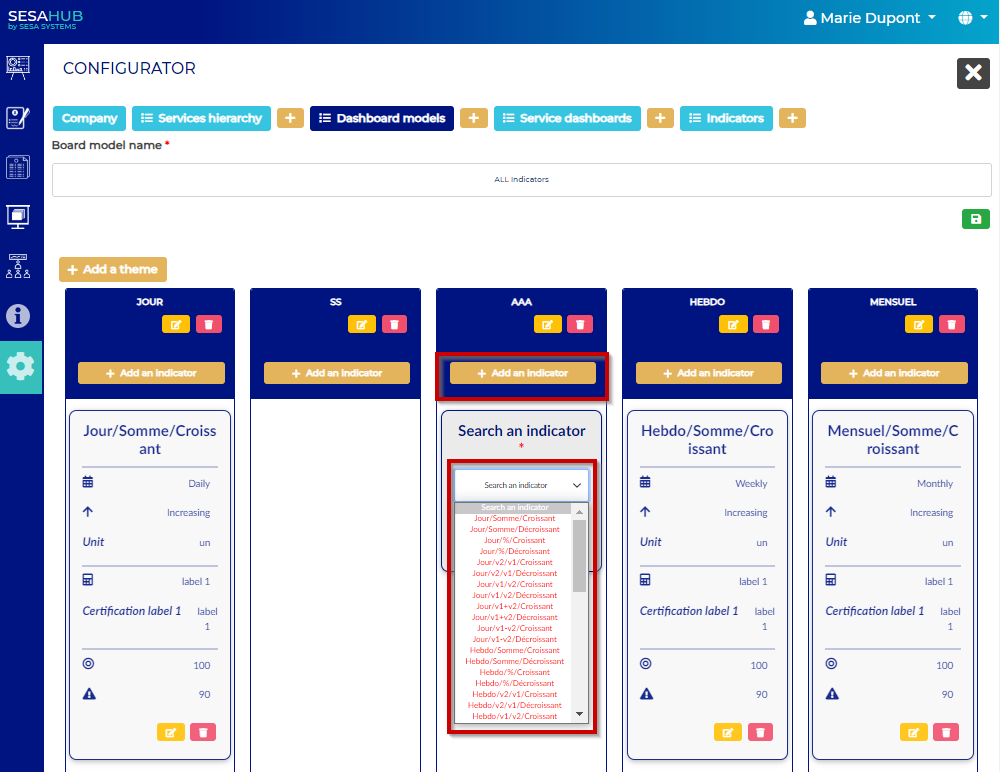
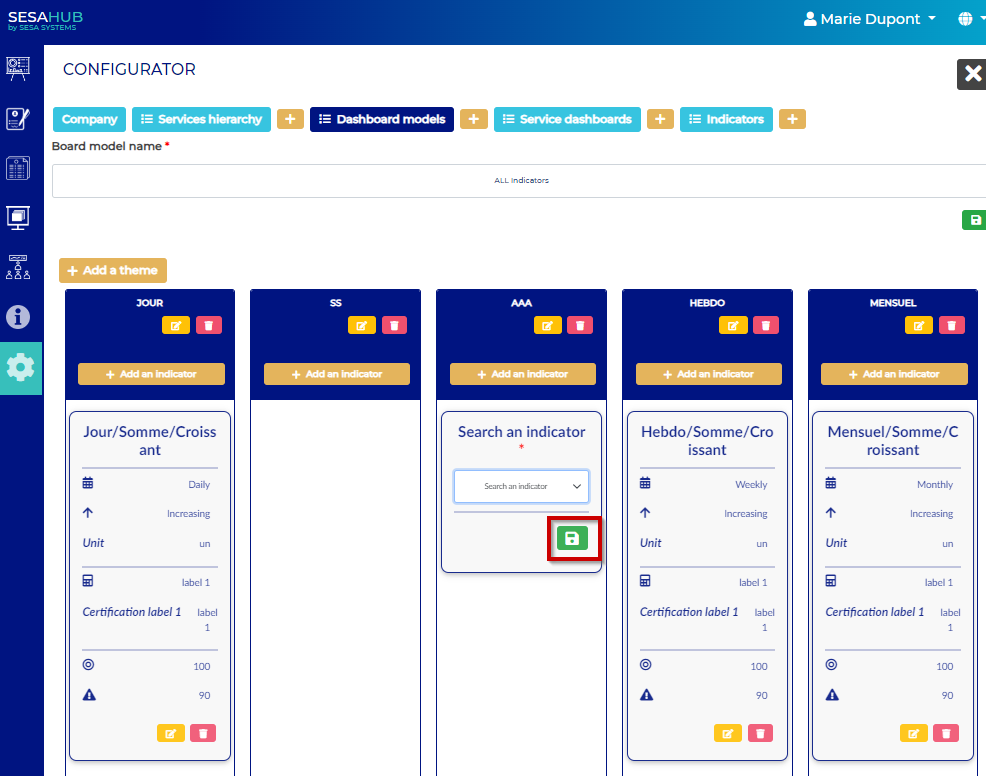
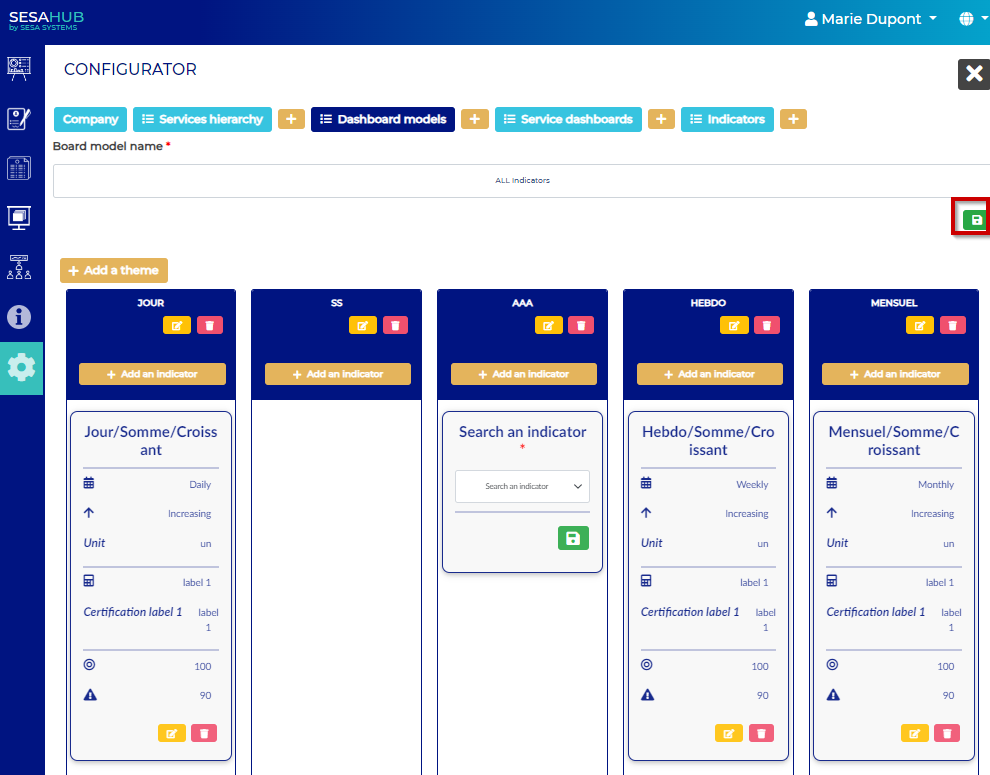
The dashboard model is created and ready to use
Add a theme
Add a theme in the way of dissociate the indicators of a service.
- Reproduce the same steps as the creation of a theme then, create an indicator.
Service dashboard
Create and modify the service dashboard
From the configurator:
- Go to Service dashboard
- Add a service dashboard by clicking the « + » button
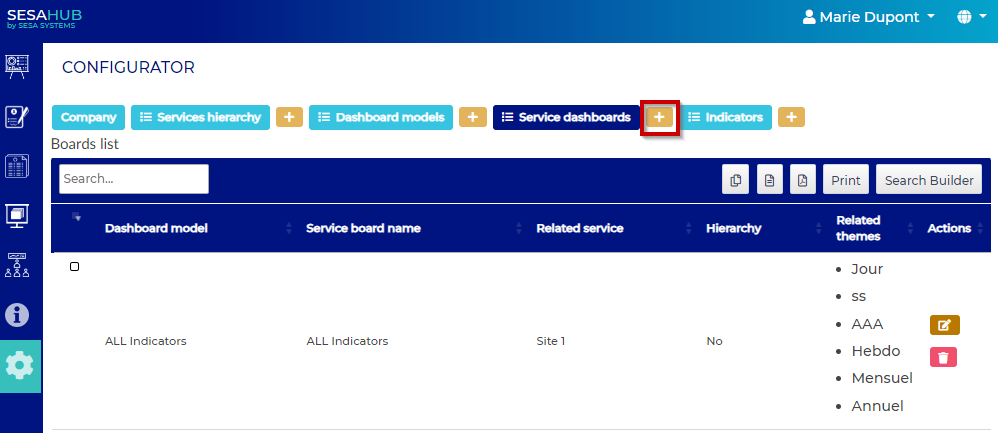
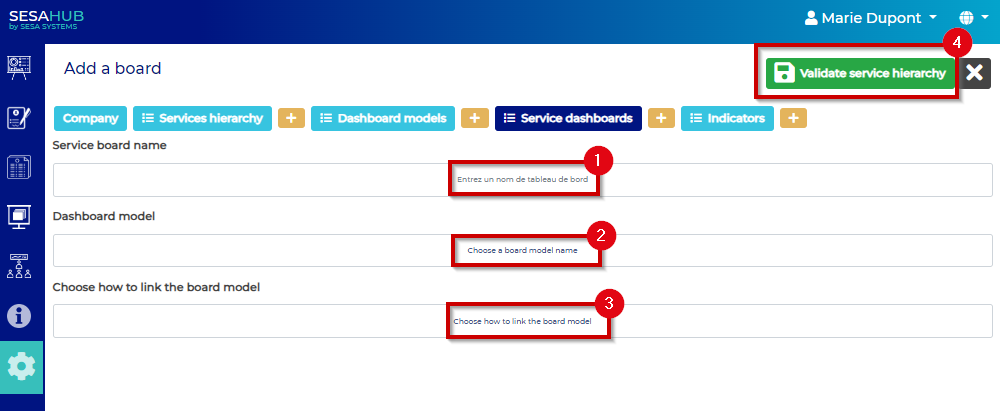
- : Name the service dashboard
- : Select the dashboard model configurated previously
- : Choose how to ling the board model
Link of services dashboard
The link allowed are:
- Unique service / Service Hierarchy
| Linked to a unique service | Linked to a service hierarchy |
|---|---|
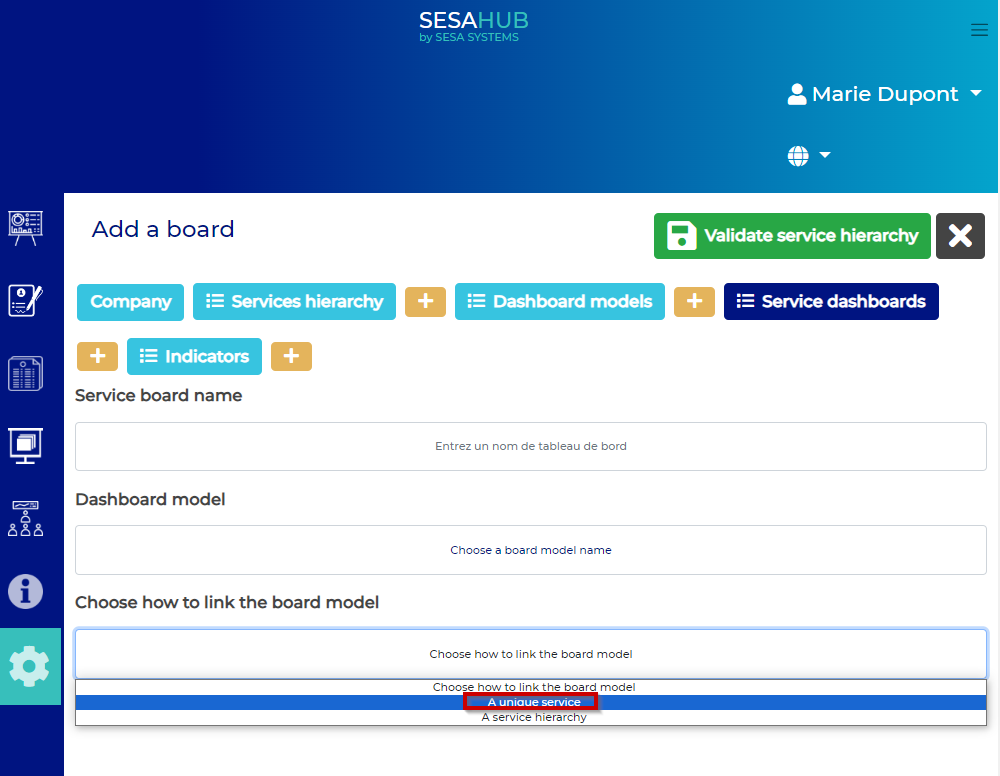 Select a unique service |  Select a service hierarchie |
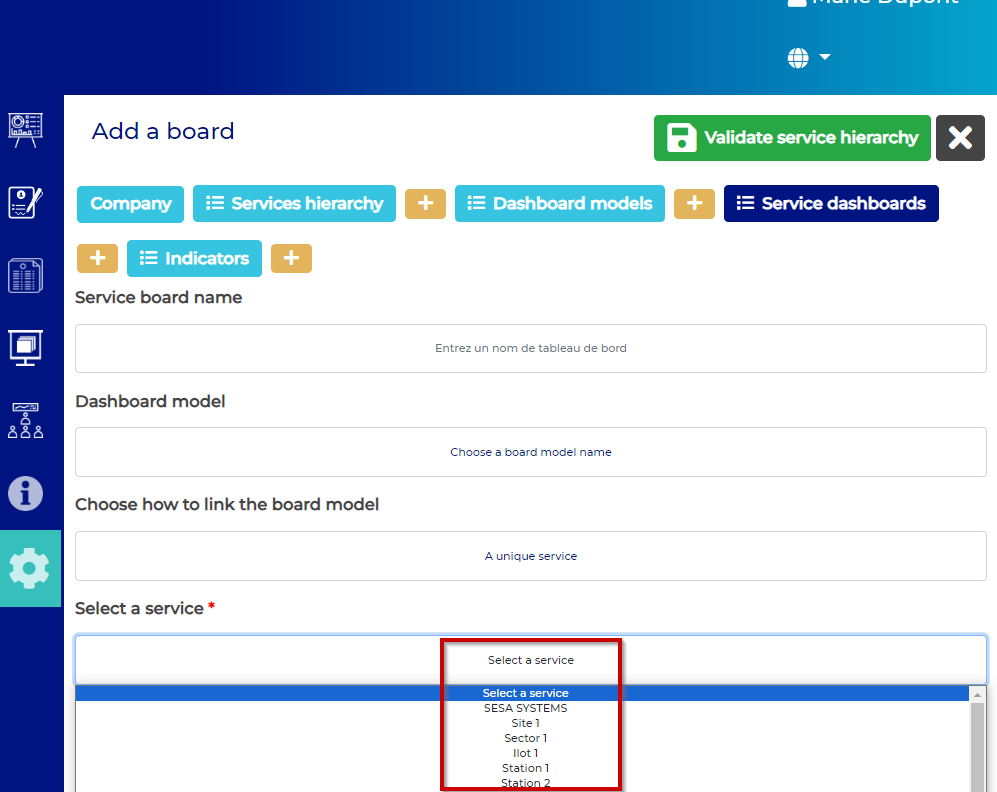 Choose the service required | 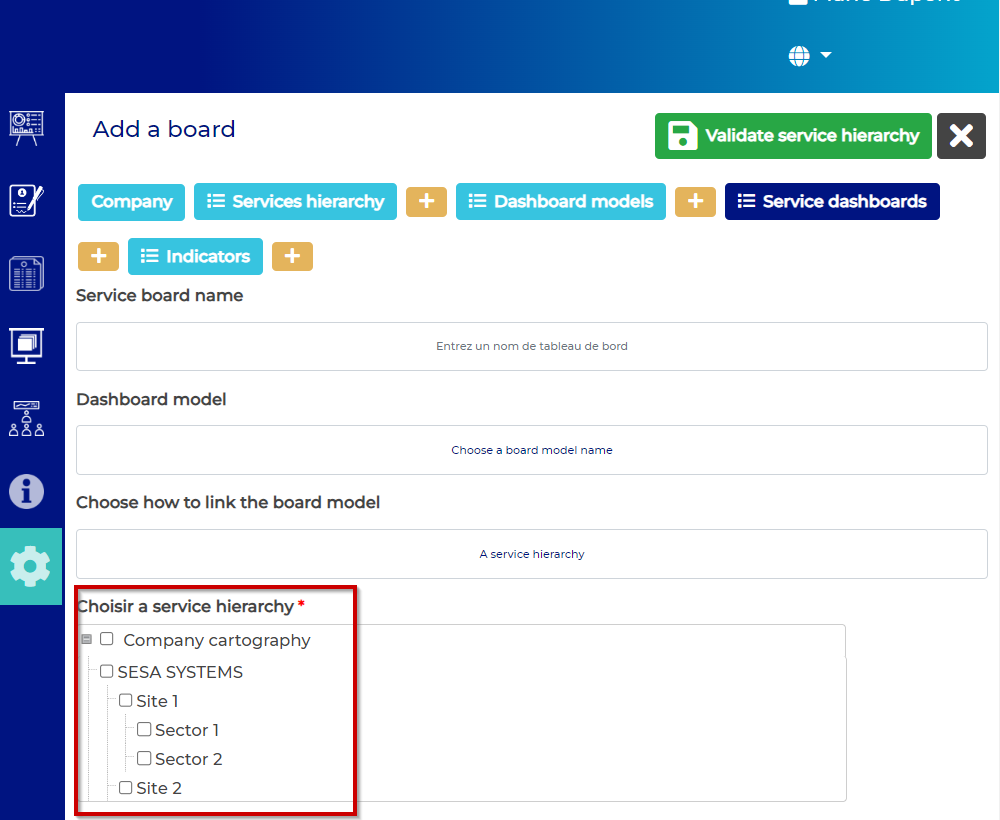 Select the visibility level: Only the selected folders and the parents folders will have a visibility on the indicators : |